
H3 Image
H3 Image is a text-to-image and photo-editing model that renders sharp pictures in eight steps, up to eight megapixels. Write one clear scene to generate a new image, or upload photos and say what should stay the same and what should change. It reads detailed prompts well and can use several reference images for edits, so portraits, posters, and product shots land closer to what you described.
Try the demo
See What You Can Create
Images (Optional)
Choose a demoAspect Ratio
Prompt
Click here to get started
What is H3 Image?
H3 Image is an open text-to-image and photo-editing model. Write a prompt to create a new picture, or upload images and say what to keep and what to change. It can finish large images in eight steps and works best when your words describe one clear scene, so portraits, posters, and product shots look closer to what you asked for.
- Eight Steps, Straight to the ImageH3 Image samples in eight steps without classifier-free guidance or a negative prompt. That keeps runs short compared with models that need dozens of steps or double each pass.
- Built for Large, Clear OutputIt is tuned for up to eight-megapixel images. Faces, hands, hair, and tiny details show up more cleanly at that size; very small previews can hide flaws or look overly smooth.
- Edit With Several Reference PhotosUse one photo as the base and add more as references—up to eight in one job. Spell out what must stay the same and what should look different so the model changes only the part you mean.
Why Use H3 Image for Visual Work
Three reasons it suits posters, portraits, product shots, and photo edits more than a basic image tool:
H3 Image Key Features
What H3 Image helps you make with clear prompts, photo uploads, and the online editor:
Create From Text
Describe one scene in words and H3 Image renders it in eight steps—no negative prompt and no classifier-free guidance. Output can reach eight megapixels when you want large, sharp stills.
Edit Your Photos
Upload a base image and add more references—up to eight in one job. Say what should stay the same and what should look different so color swaps, relights, and small fixes do not redraw the whole frame.
Built for Posters and Products
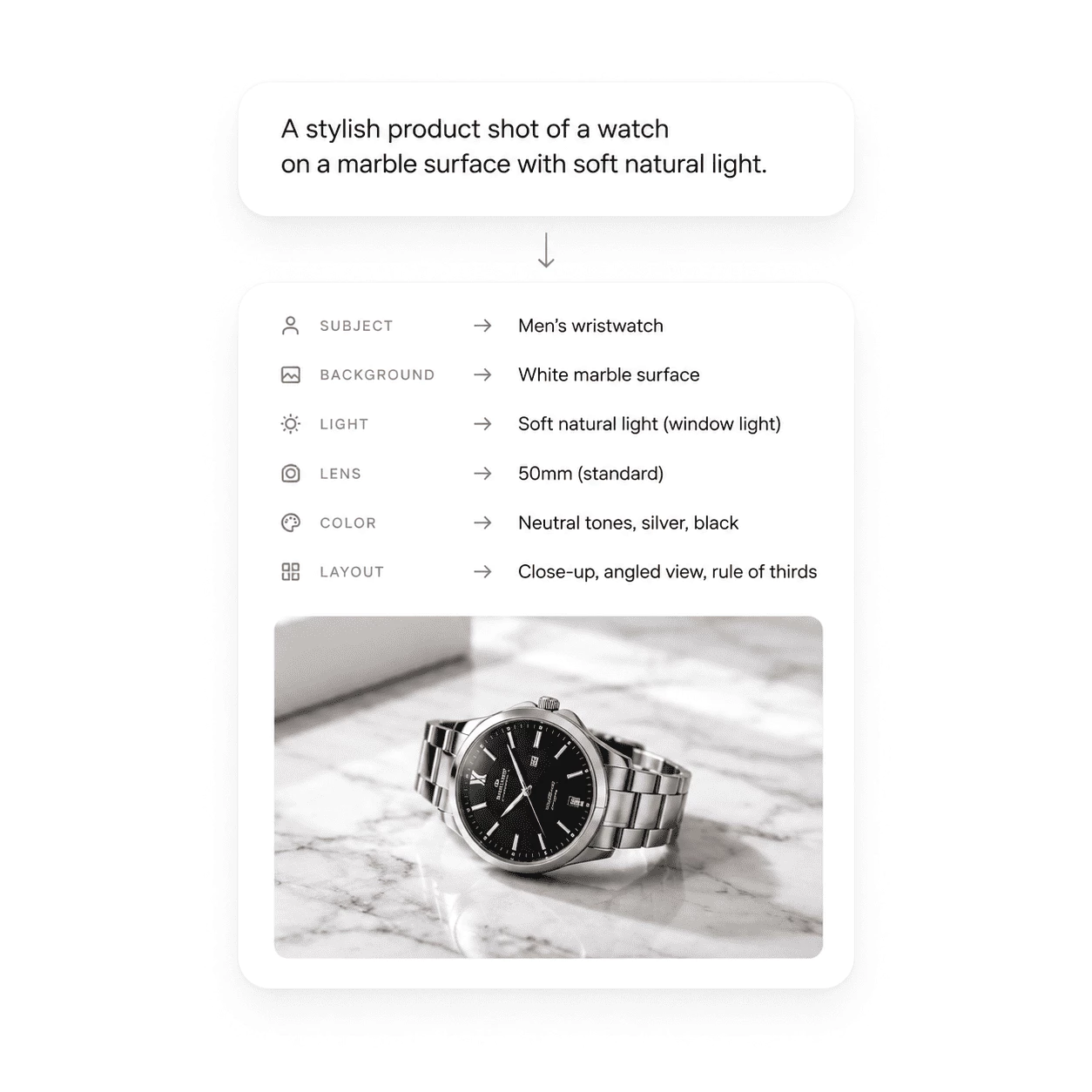
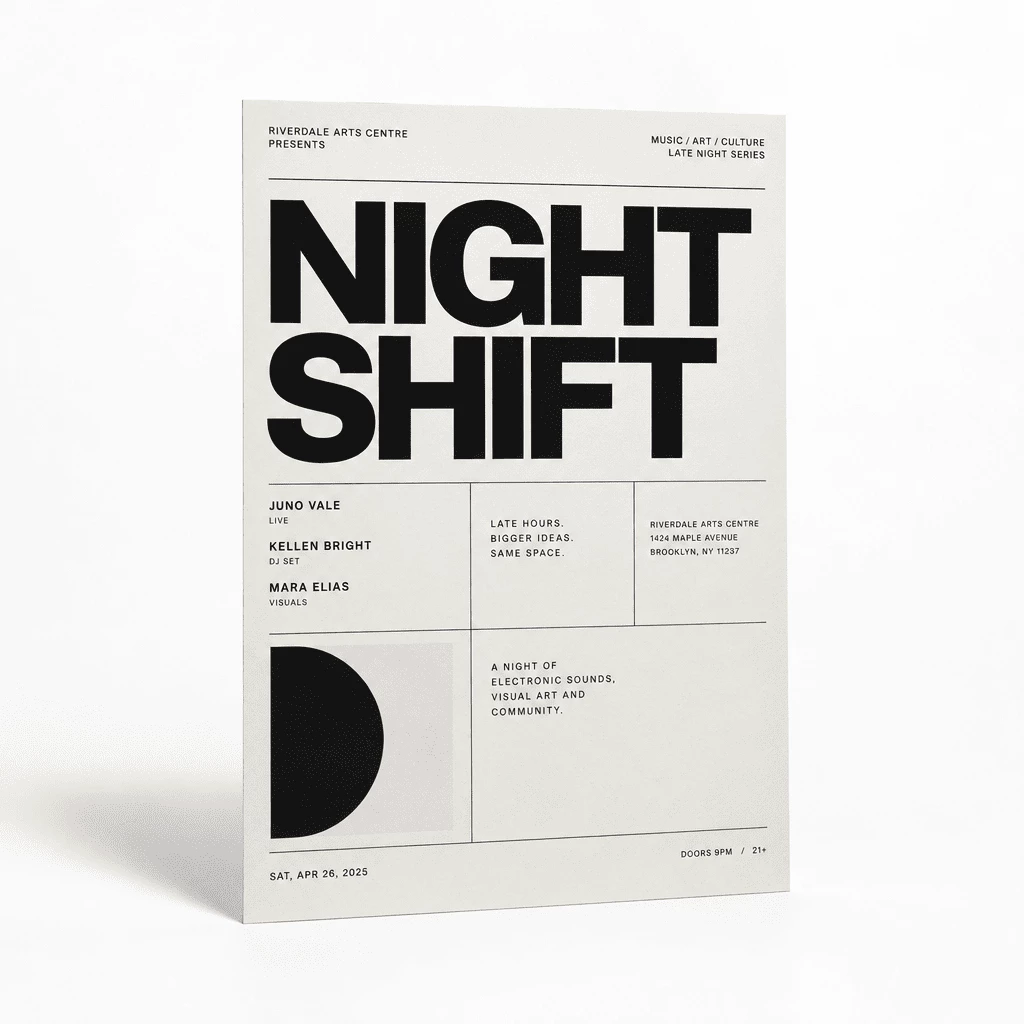
Strong fits include real-looking portraits, film frames, editorial shots, ink drawings, and screen-print posters with short quoted labels. Name light, color, and layout in plain words for cleaner results.
Eight Aspect Ratios
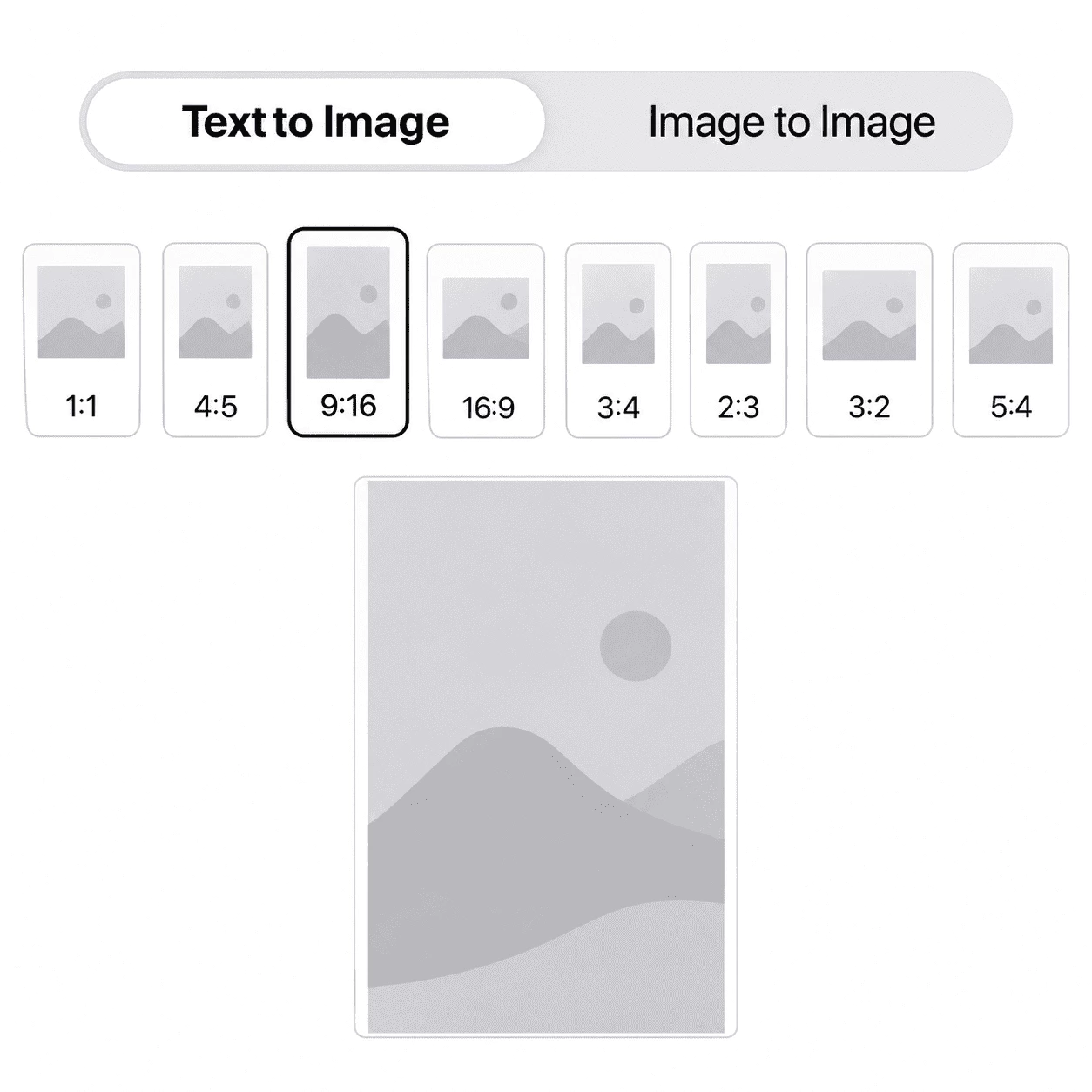
Choose Auto, 1:1, 4:5, 3:4, 2:3, 9:16, 16:9, or 3:2 so each image fits feeds, stories, reels, banners, thumbnails, or large eight-megapixel exports for your aspect.
Template Briefs in the Editor
Start from a template or a short note; the editor can expand it into a fuller scene or edit brief for your ratio. Tweak the wording, then generate without writing every line yourself.
Private History and Downloads
Each run is stored in your History. Download results, run another pass on the same idea, or remove uploads and outputs whenever you like.
Make Your First H3 Image
Three simple steps from idea to a finished image in the editor:
Choose a Mode
Use text to image when you are starting from words only. Use image to image when you have a photo to change—add extra reference shots if you need a specific look or object.
Write Your Brief
Tell the model what the picture is, who or what is in frame, and where the light comes from. Quote any words that should appear on the image, or start from a template and adjust the details.
Generate, Save, and Refine
Pick an aspect ratio and run Generate. H3 Image completes its eight-step pass and can output large eight-megapixel stills. Save the file, try another edit, or find past runs in your History.
Click here to get started
Ways to Use H3 Image
See how clear prompts and photo edits with H3 Image help you build posters, pack shots, charts, and careful touch-ups at large size.
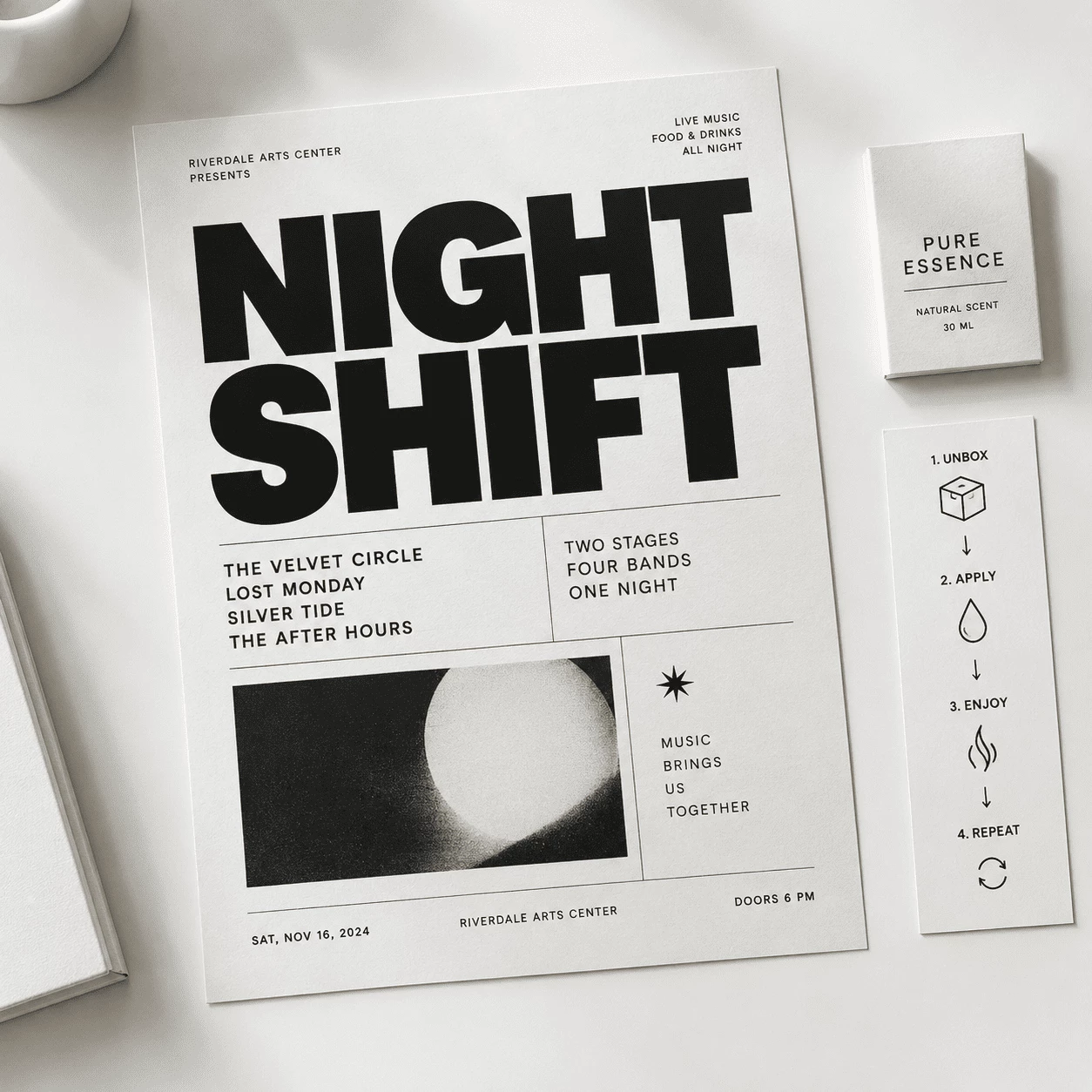
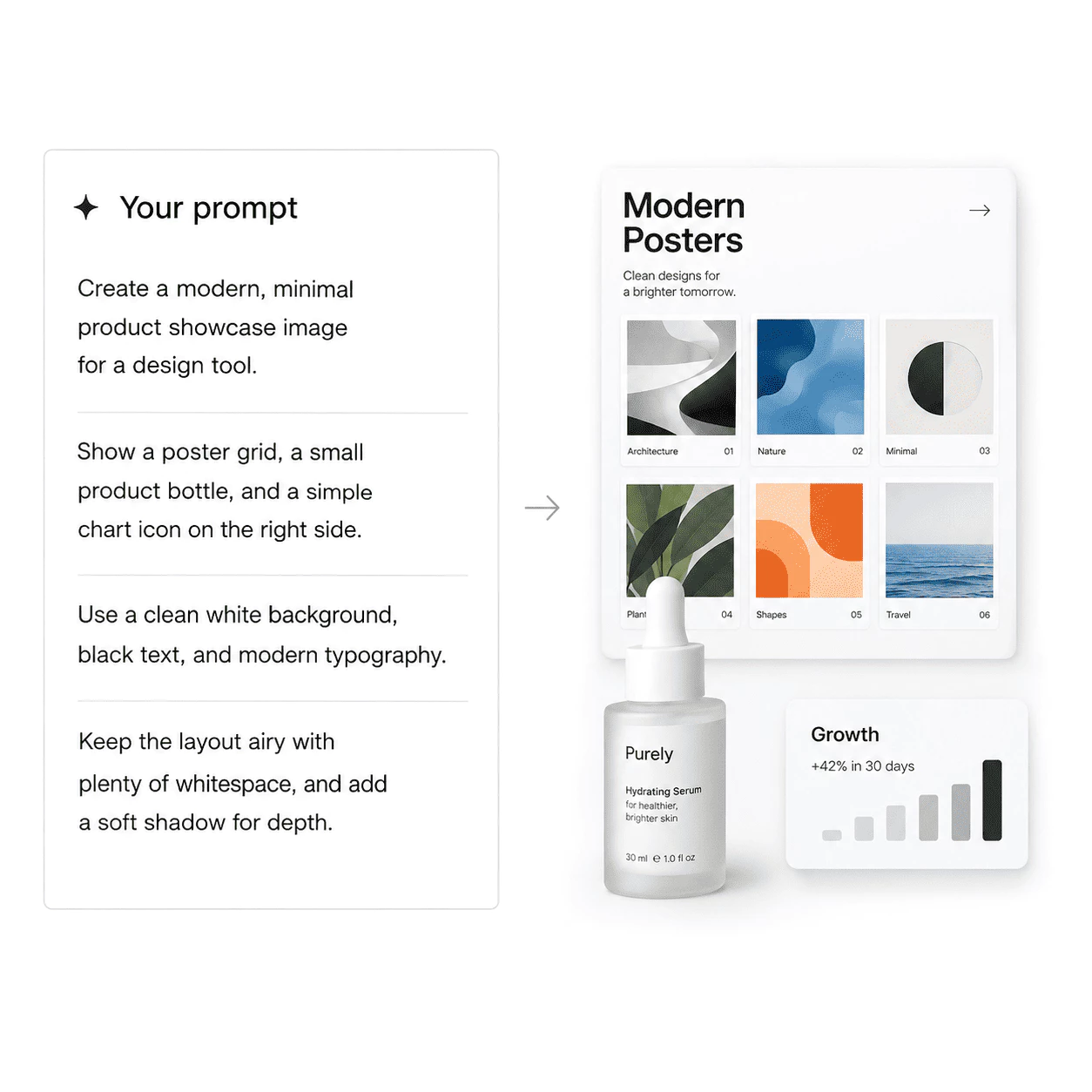
Build Layout-Heavy Posters
Say it is a screen-print or risograph-style poster, then quote the headline and where it sits on the page. H3 Image follows that scene closely so event and promo layouts stay readable at eight megapixels.
- Begin from a sample prompt and replace the title, date, and ink colors
- Choose a ratio for square posts, tall stories, or wide banner crops
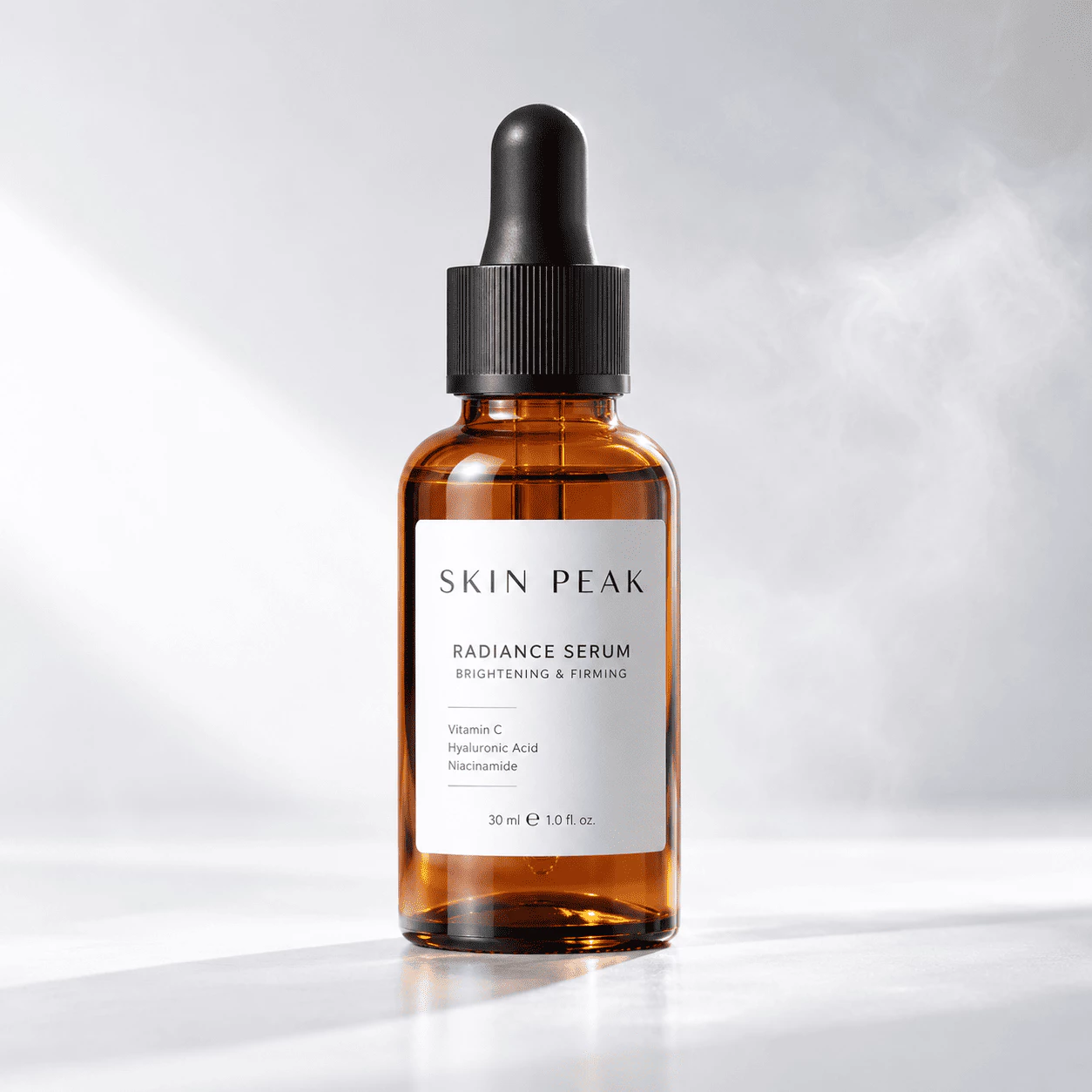
Light Bottles and Pack Shots
Note where the bottle rests, how side light hits the glass, and the backdrop tone. H3 Image keeps labels, reflections, and misty highlights sharp enough for shop pages and ad crops.
- Name the material, haze, surface, and which side shows the label
- Export the still and reuse it in listings, decks, or social frames
Click here to get started
H3 Image – From Brief to Image
H3 Image focuses on one job: turn your words—and optional photo uploads—into still images for posters, products, charts, and targeted edits.
Detailed Prompts
Brief Before Render
Short notes can grow into a fuller scene write-up for your aspect ratio before the eight-step pass runs, so clear, specific wording is tracked instead of skipped.
Words in the Frame
Layouts That Read
Quote short headlines and label text where they belong. At eight megapixels, type and tiny details stay cleaner on posters, packs, and simple chart graphics.
Fast Image Output
Ready to Use
Each still finishes in eight sampling steps with no negative prompt. Choose a ratio for feeds, stories, or banners, save the file, and revisit past runs in History.
H3 Image – Common Questions
Quick answers about prompts, photo edits, downloads, aspect ratios, and your gallery history.
What is H3 Image?
H3 Image is a text-to-image and photo-editing model you use in the online editor. Write a prompt to create a new still, or upload images and explain what to keep and what to change. It renders in eight steps and is tuned for large, detailed output.
Can ChatGPT make H3 Image pictures?
No. ChatGPT can help you word a prompt, but it does not run H3 Image or store your results in History. Generate and download inside the H3 Image editor.
How do I get started?
Open the editor, choose text to image or image to image, write a scene brief or open a starter template, pick an aspect ratio, and press Generate. The model runs eight sampling steps; save the still or open it again from History for another edit.
What uploads work best for edits?
Pick sharp photos with even light when you can. Picture one is the file you edit; you may add more references—up to eight total. State what must stay fixed and what should look different, such as a label, face, pose, or backdrop.
How is H3 Image different from a basic image app?
It prefers full, specific prompts and can expand short notes into a longer brief. It does well on portraits, posters with quoted text, and edits where you name exact objects—not on empty one-word requests.
What does each run output?
Each run returns one still image, often up to eight megapixels for text to image and four or eight megapixels for edits. Text to image builds from your prompt; image to image follows your instruction and can lean on reference uploads for look or detail.